
How to Download Roblox on PC (Windows 10 & 11)
Roblox is one of the most popular gaming platforms in the world, allowing players to create, share, and play millions of games for free. If you're wondering how to download Roblox on PC, this complete guide will walk you through every step for both Windows 10 and Windows 11.

Check Roblox System Requirements
Before installing Roblox Player, make sure your PC meets the minimum requirements.
| Component | Minimum Requirement |
|---|---|
| Operating System | Windows 7 or newer |
| Processor | Intel Core i5 or equivalent |
| RAM | 4 GB or more |
| Graphics | DirectX 10 Compatible GPU |
| Storage | 20 MB Free Space |
| Internet | Broadband Connection Recommended |
Step 1: Create a Roblox Account
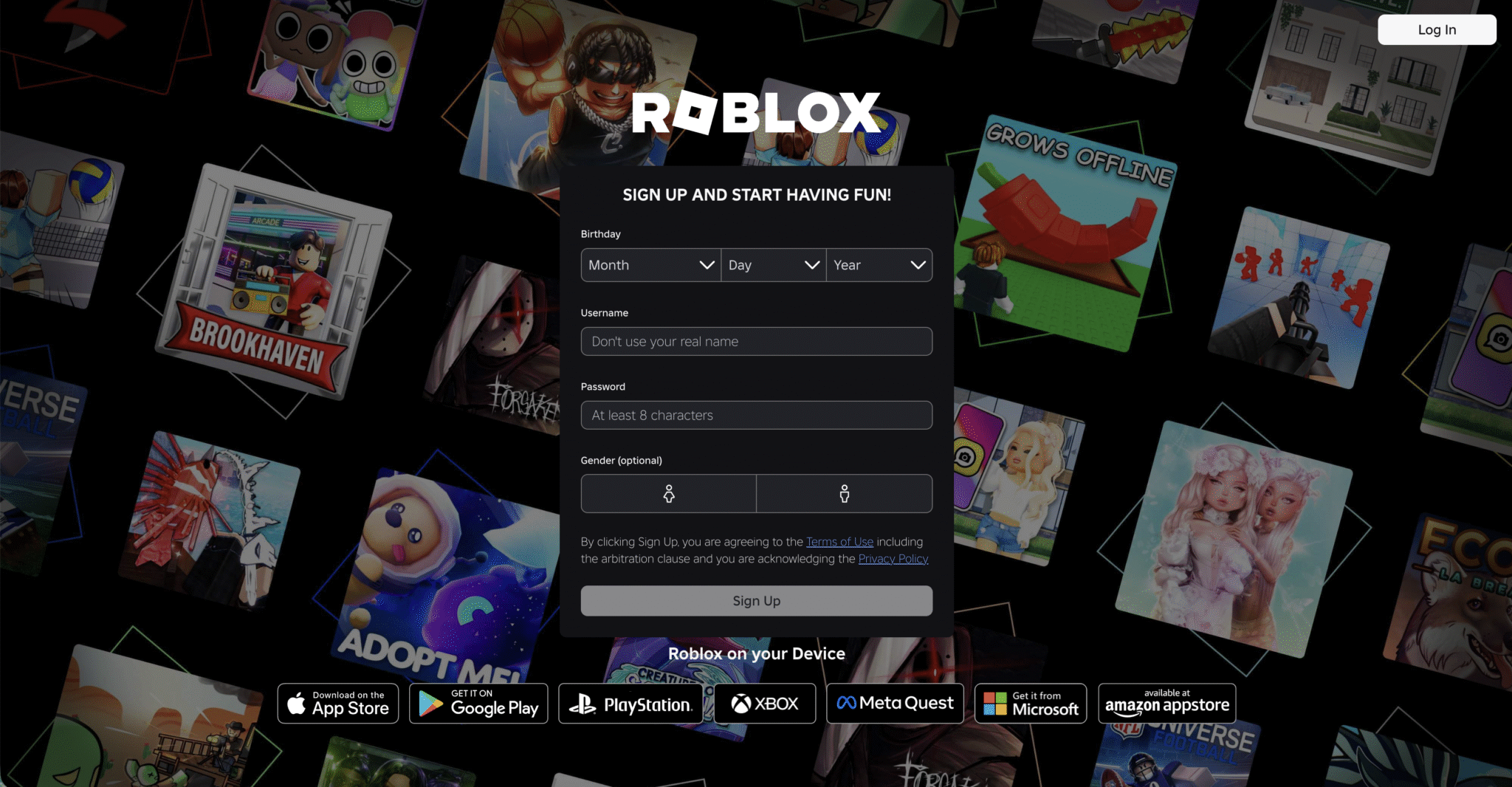
To play Roblox on PC, you first need a Roblox account. Visit roblox.com and click Sign Up.
Enter your username, password, and birth date. You can also sign up using Facebook if available. Complete the verification process and create your account.
Your Roblox account can be used across PC, mobile devices, Xbox, and other supported platforms.
Step 2: Download Roblox Player from the Official Website
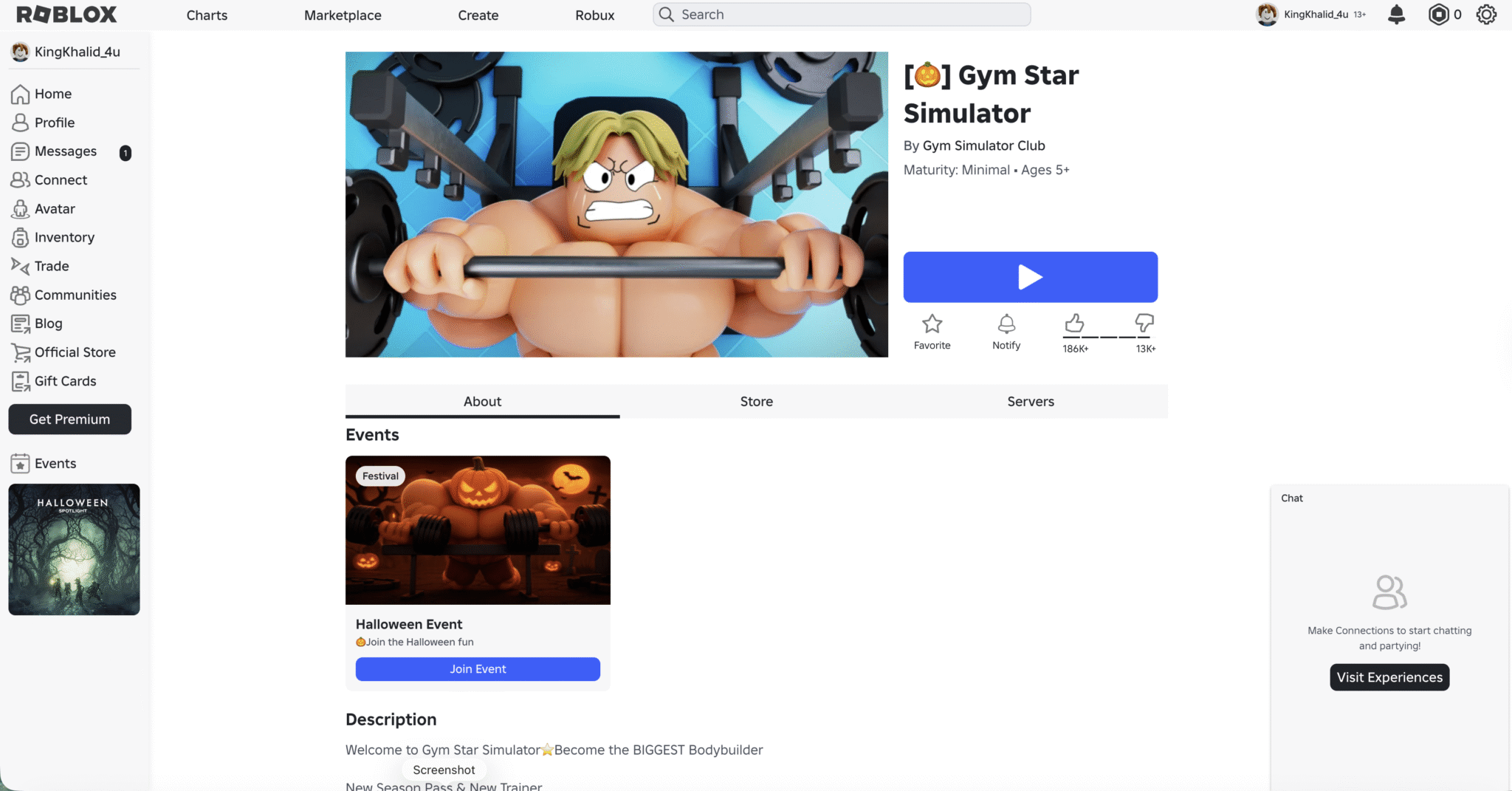
Once your account is ready, sign in to Roblox using Chrome, Edge, or Firefox.
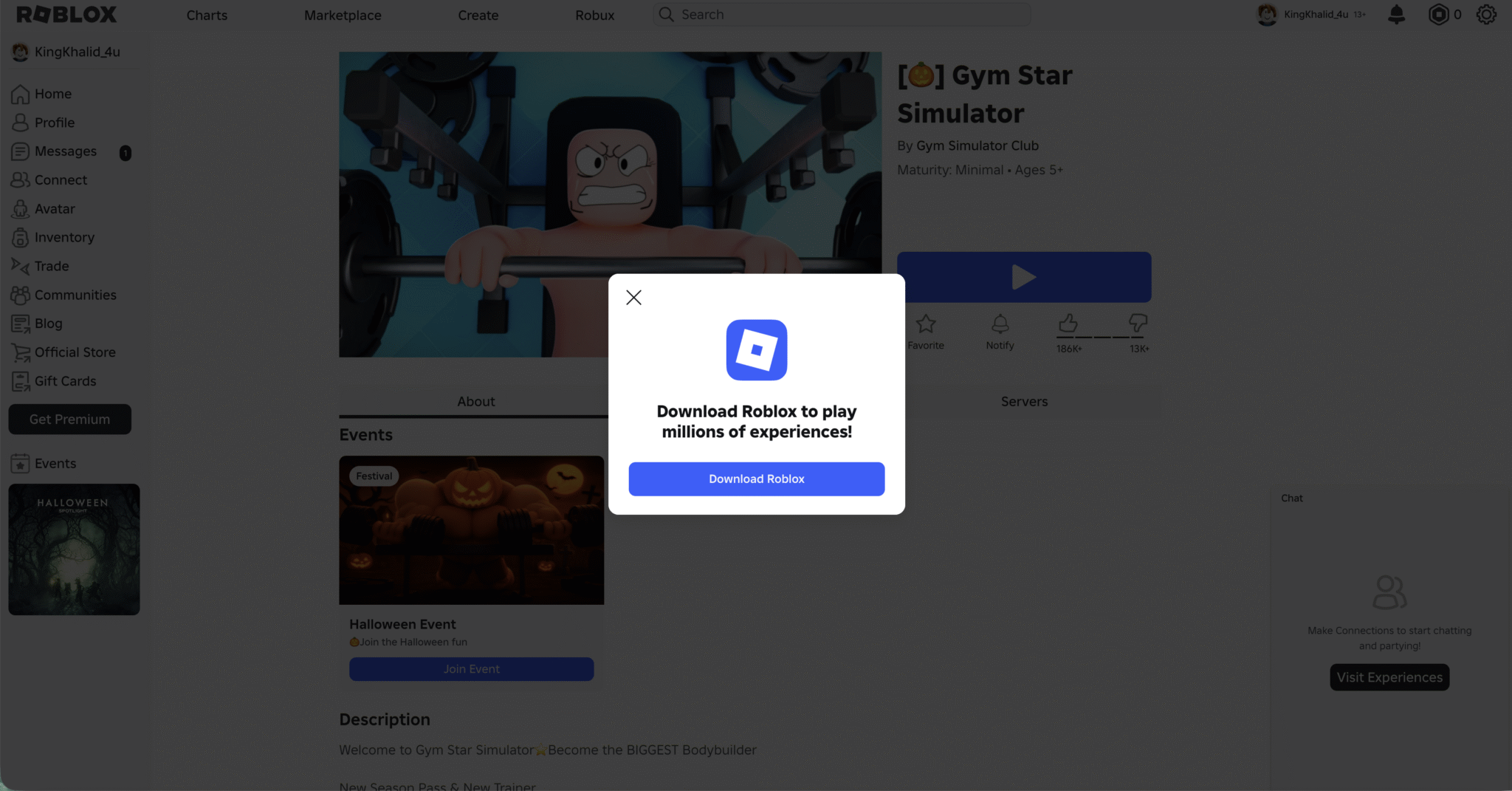
Select any game and click the green Play button. Roblox will automatically start downloading the installer.
Locate the downloaded file named RobloxPlayerLauncher.exe in your Downloads folder and double-click it.
Follow the installation wizard. Roblox will automatically install the latest version on your PC.
After installation completes, Roblox Player will launch automatically.
Step 3: Install Roblox from Microsoft Store (Alternative Method)
You can also download Roblox from Microsoft Store.
- Open the Microsoft Store.
- Search for Roblox.
- Click Get or Install.
- Wait for the installation to complete.
While convenient, the Microsoft Store version may occasionally receive updates later than the official website version.
Step 4: Sign In and Launch Roblox
Open Roblox Player from the Start Menu or Desktop shortcut.
Sign in using your Roblox account credentials. You'll immediately gain access to the Roblox dashboard where you can browse games, join friends, and explore trending experiences.
Step 5: Customize Your Roblox Avatar
Your avatar represents you throughout Roblox.
Navigate to the Avatar section and customize clothing, hairstyles, accessories, animations, and more.
You can choose from free items or purchase premium cosmetics using Robux.
Step 6: Start Playing Roblox Games
Open the Games section and browse thousands of experiences across various genres:
- Adventure Games
- Role-Playing Games
- Tycoon Simulators
- Racing Games
- Action Games
- Survival Experiences
Select a game and click Play. Roblox will launch the experience in a separate game window.
Troubleshooting Roblox Installation on Windows
If Roblox fails to install or crashes during startup, try these solutions:
- Restart your computer and reinstall Roblox Player.
- Check that your internet connection is stable.
- Update graphics drivers from NVIDIA, AMD, or Intel.
- Temporarily disable antivirus software.
- Run Windows Disk Cleanup to remove temporary files.
- Ensure Windows is fully updated.
Tips for Better Roblox Performance
- Keep Roblox Player updated.
- Lower graphics settings if experiencing lag.
- Use a wired Ethernet connection for better stability.
- Close unnecessary background applications.
- Install the latest GPU drivers.
- Regularly restart your PC for optimal performance.
Summary
- Create a Roblox account.
- Download Roblox on PC from the official website or Microsoft Store.
- Install Roblox Player.
- Sign in with your account.
- Customize your avatar.
- Start playing millions of Roblox games.
Conclusion
Now you know exactly how to download Roblox on PC and get started on Windows 10 or Windows 11. The installation process takes only a few minutes, and once complete, you'll have access to millions of free games and experiences.
Download Roblox today, create your unique avatar, connect with friends, and explore one of the largest gaming communities in the world.
SEO Keywords
download Roblox on PC, how to install Roblox, Roblox Windows 11, Roblox Windows 10, Roblox Player download, install Roblox on PC, Roblox setup guide, Roblox account creation, Roblox gameplay guide, Roblox download tutorial, play Roblox on computer, Roblox installation Windows, Roblox beginner guide



0 Comments